What your customer sees when you send a quote
Your customer never has to sign up or log in. They open the link in your email on whatever device they have, usually their phone.
The customer opens the link in your email
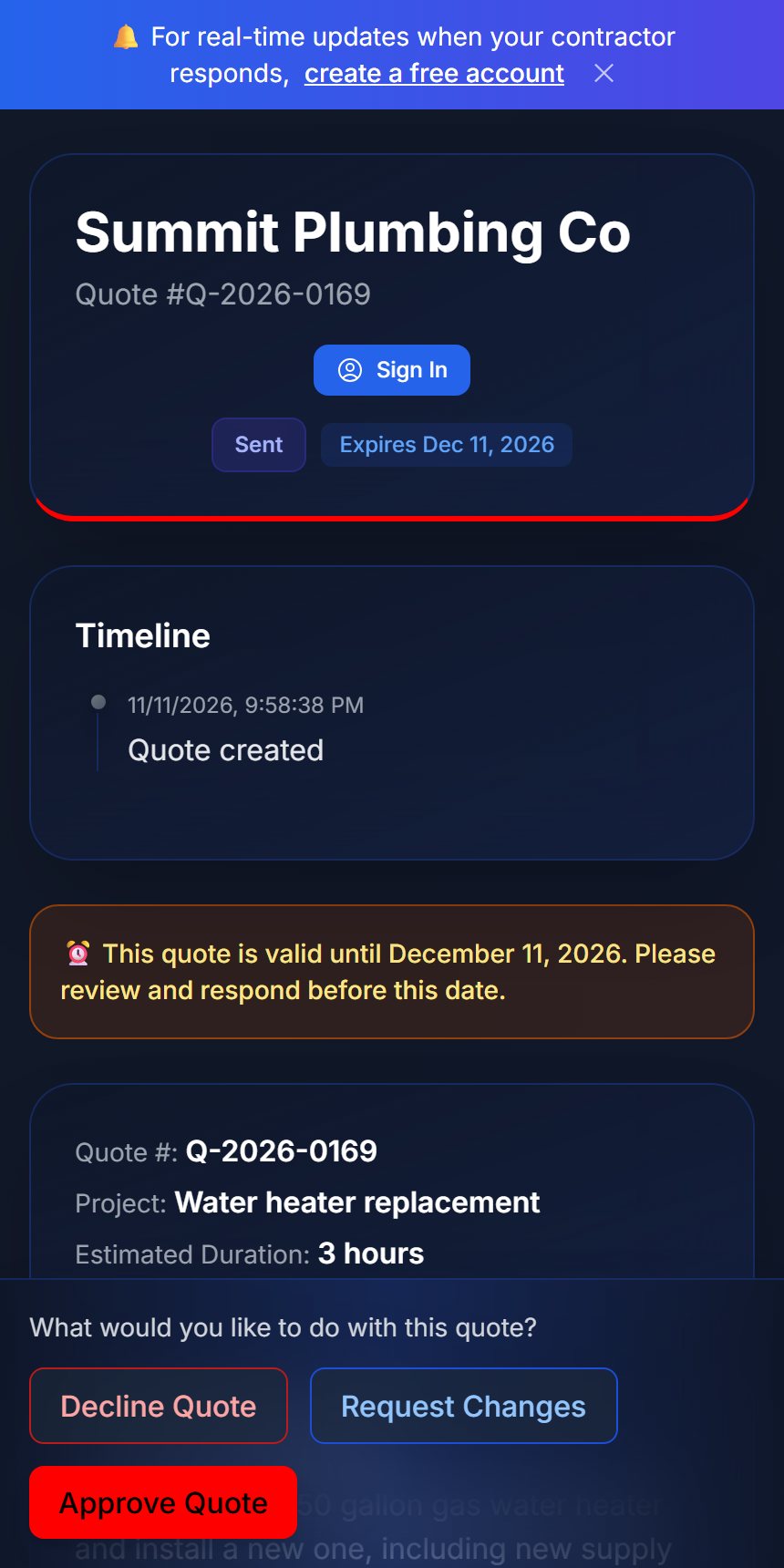
There is no account to create and no password. The link opens the quote with your business name, the quote number, its status and the date it expires, and the Approve, Request Changes and Decline buttons stay on screen as they scroll.
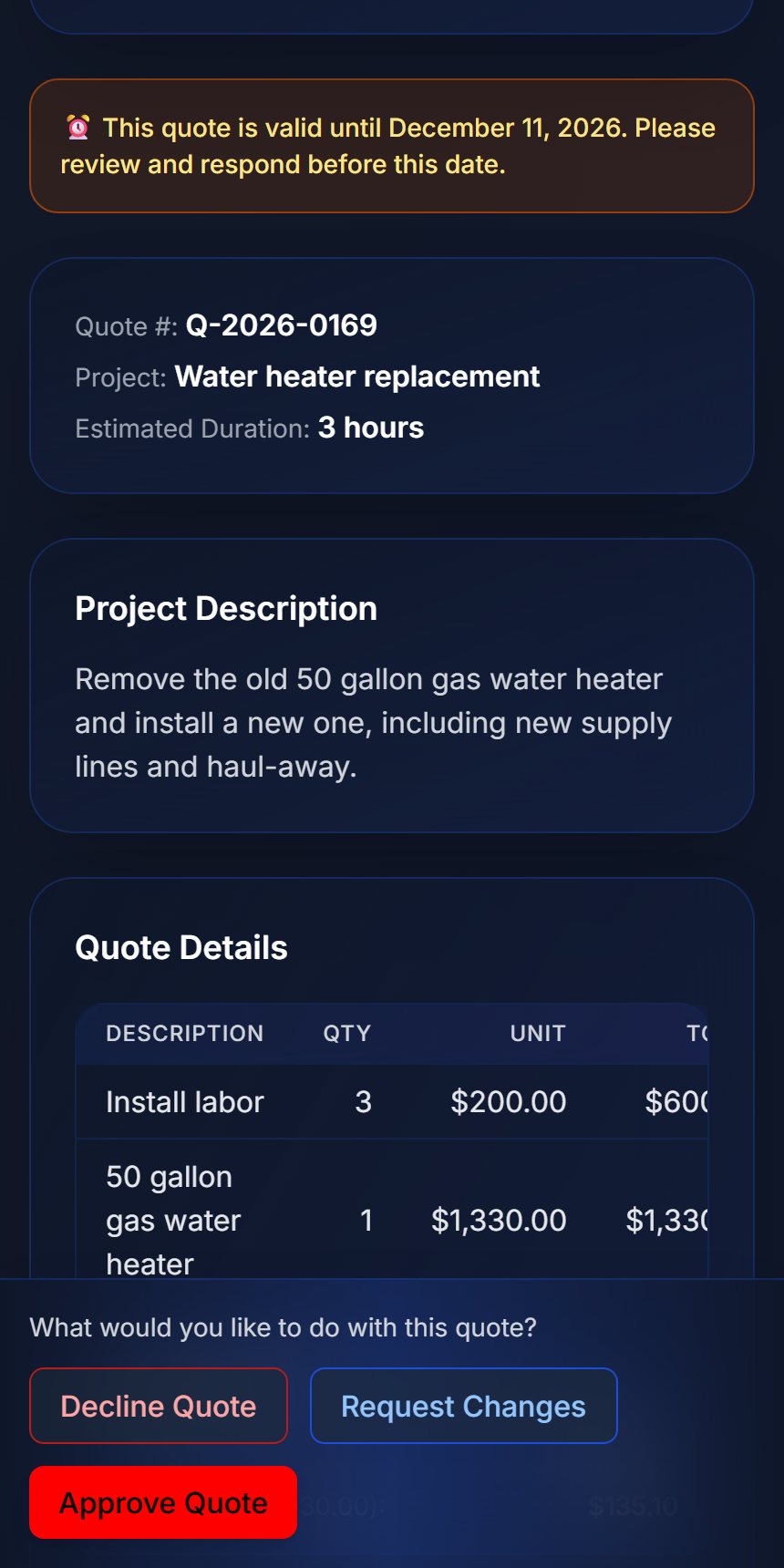
They see the line items and the total
The quote shows each line, the subtotal, tax and total, followed by your payment terms and your terms and conditions. How much detail the customer sees is set by the Customer Sees option on the quote.
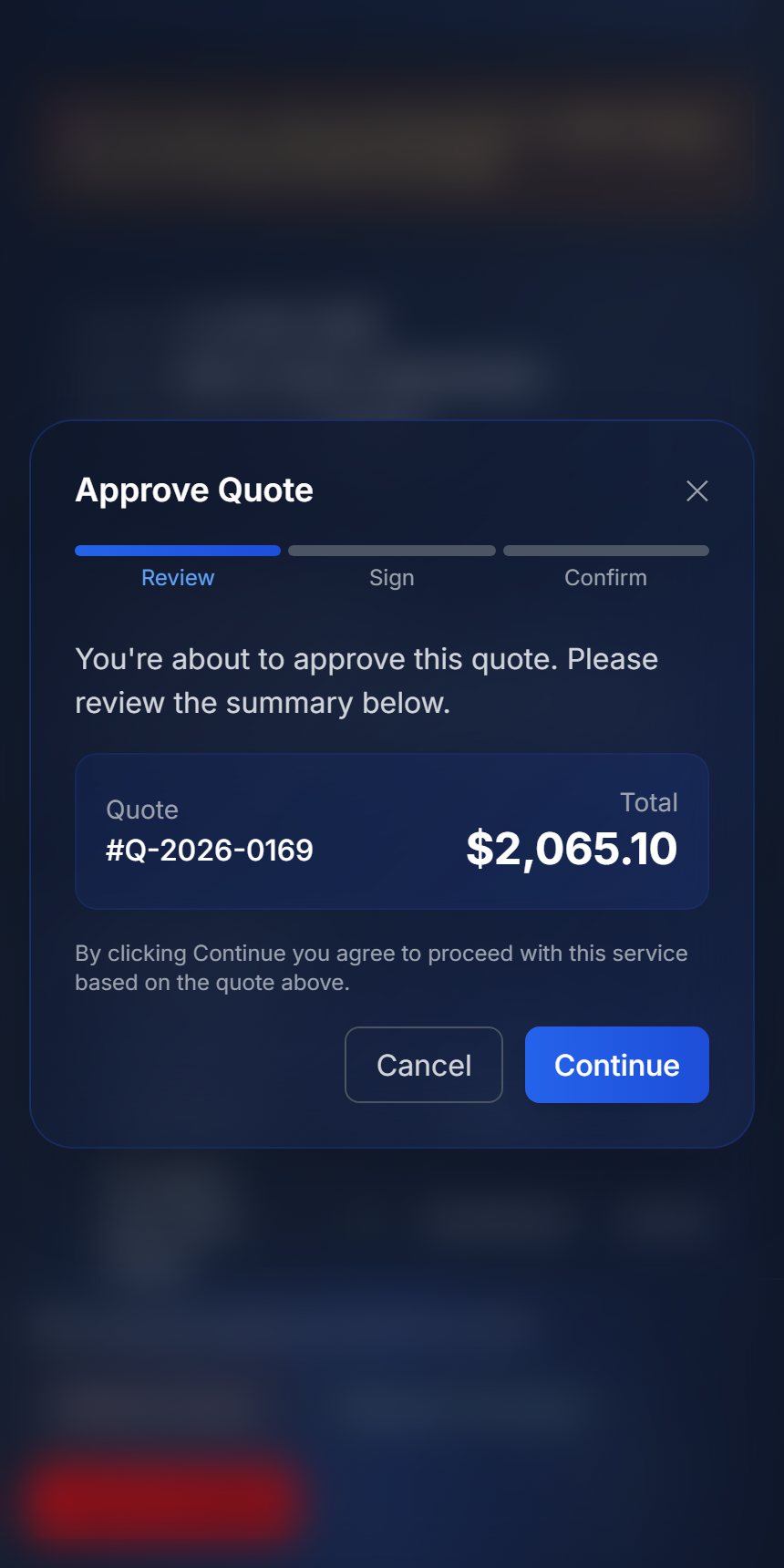
They tap Approve Quote and review the total
Approving takes three short steps. The first shows the quote number and the total they are agreeing to.
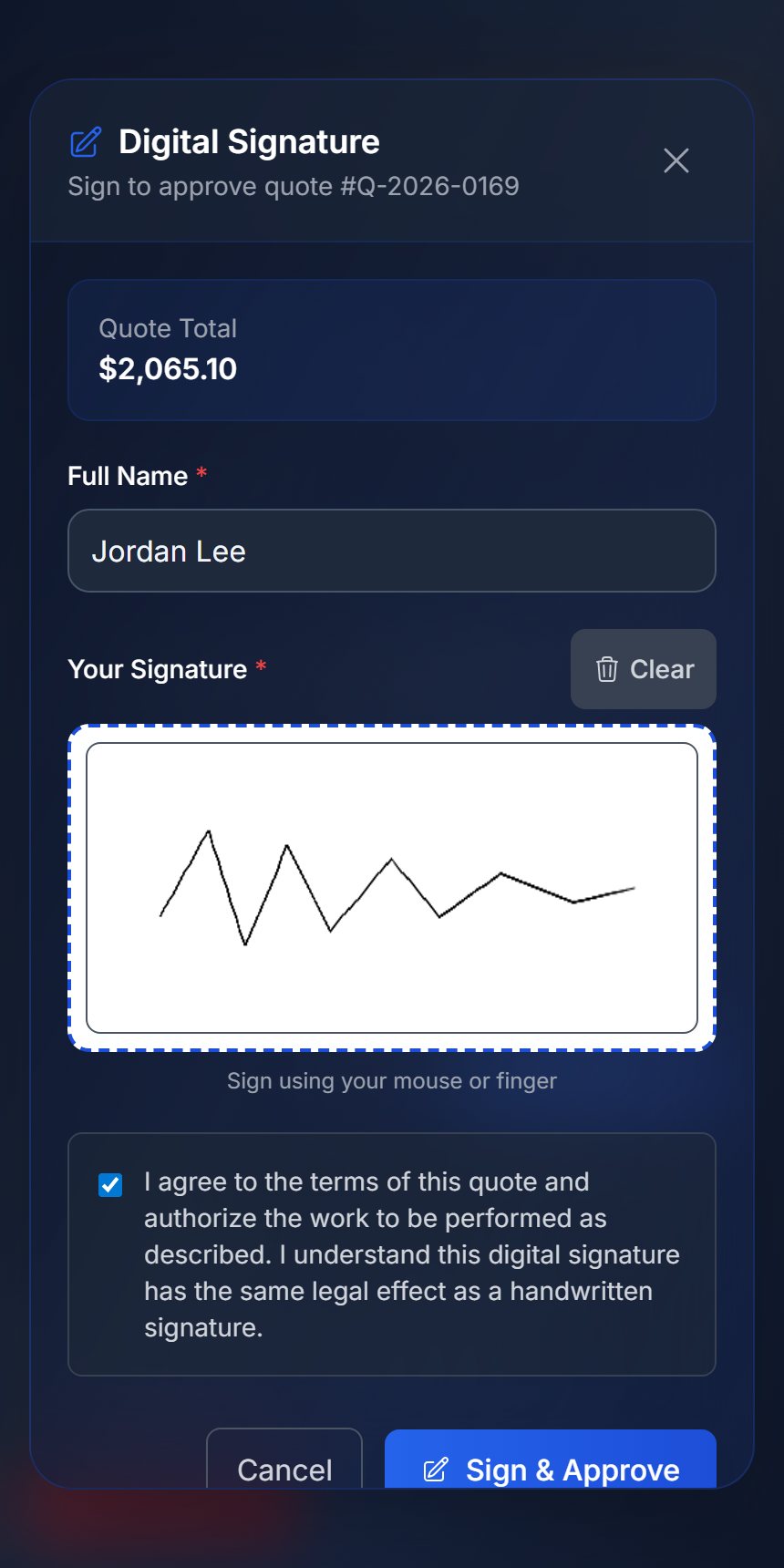
They sign with a finger
The customer types their name, signs on the screen and ticks the box to agree. The signature is saved with the quote. If you do not want signatures, turn off Require Signature on Approval in Settings, under Quote Acceptance.
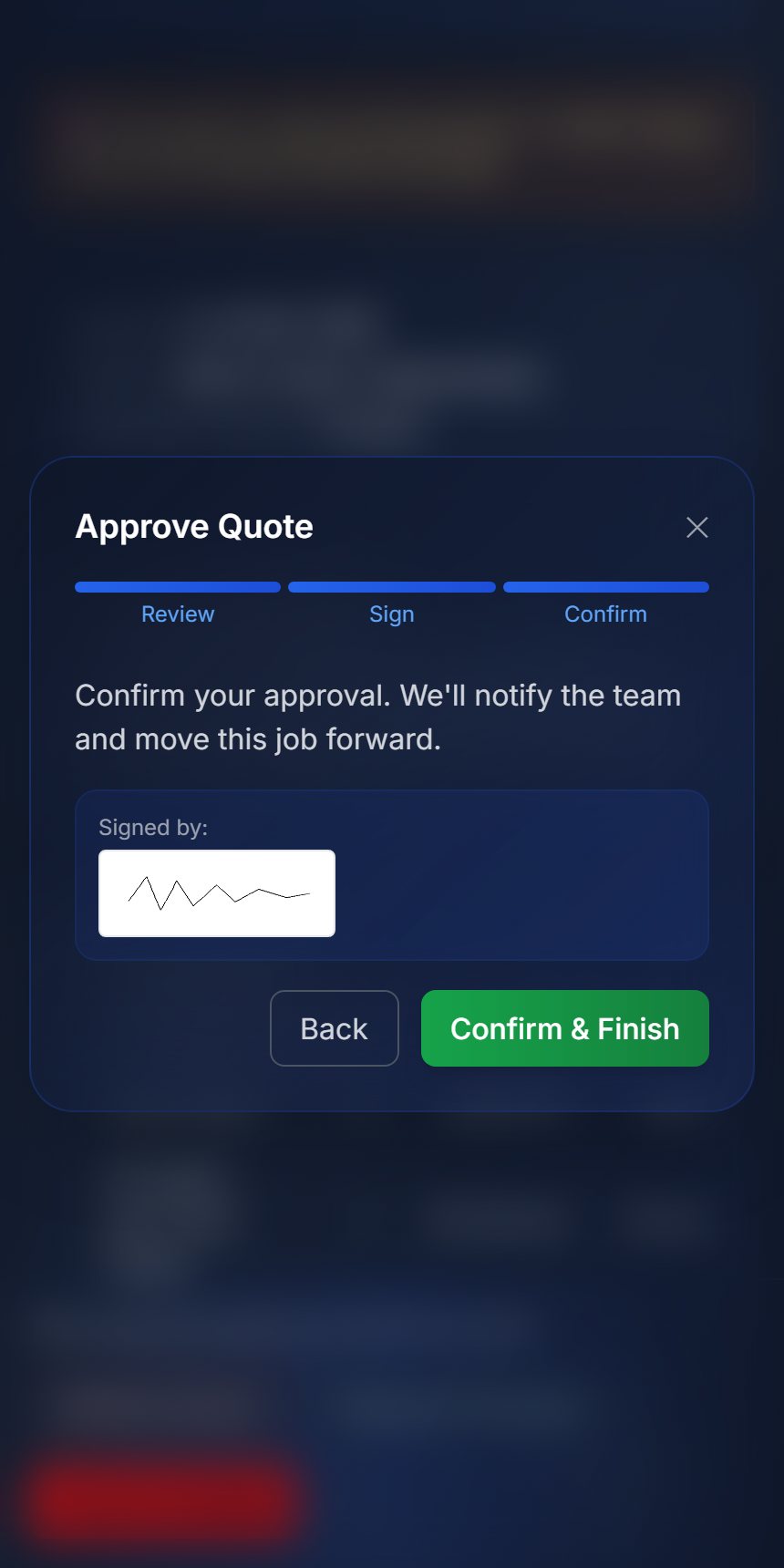
They confirm
A last screen shows the signature and asks them to confirm. If the quote has a deposit, this is where they are taken to pay it.
The quote is approved
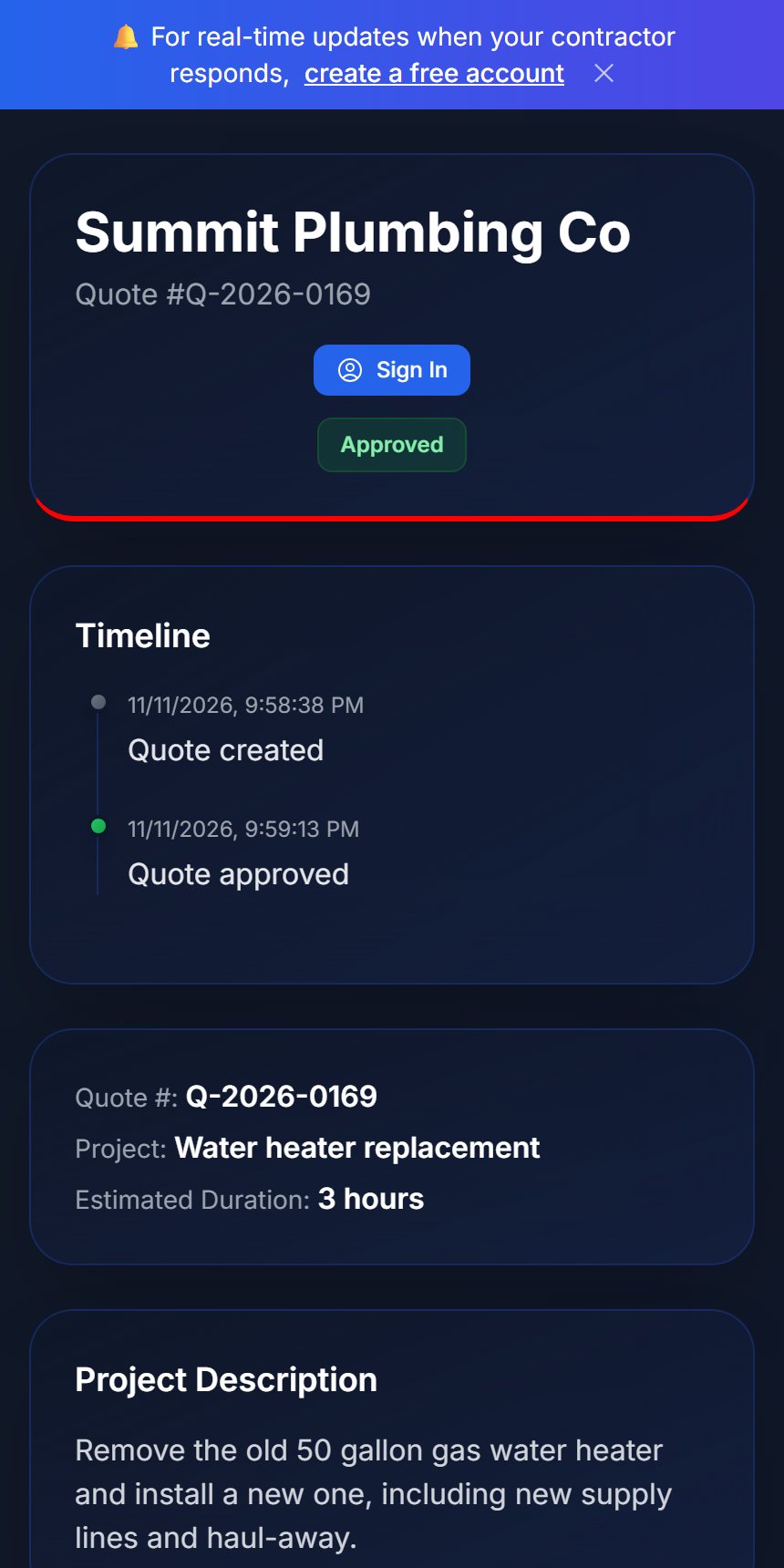
The page updates to show the quote as approved, and the status changes to Approved in your Quotes list. You are notified so you can get the job on the schedule.
The same kind of link is used for invoices: the customer opens it, sees what they owe and pays online.
Screenshots show a sample company with made-up customers.