How to add a team member
Each person signs in with their own account, so jobs, time and notes are recorded against the right name.
Open Team Members and click Invite by Email
Open the Team menu on the left and go to Team Members. Invite by Email is the usual way: the person gets an email and sets their own password. For a helper with no email address, use Add with Password and give them the login yourself.

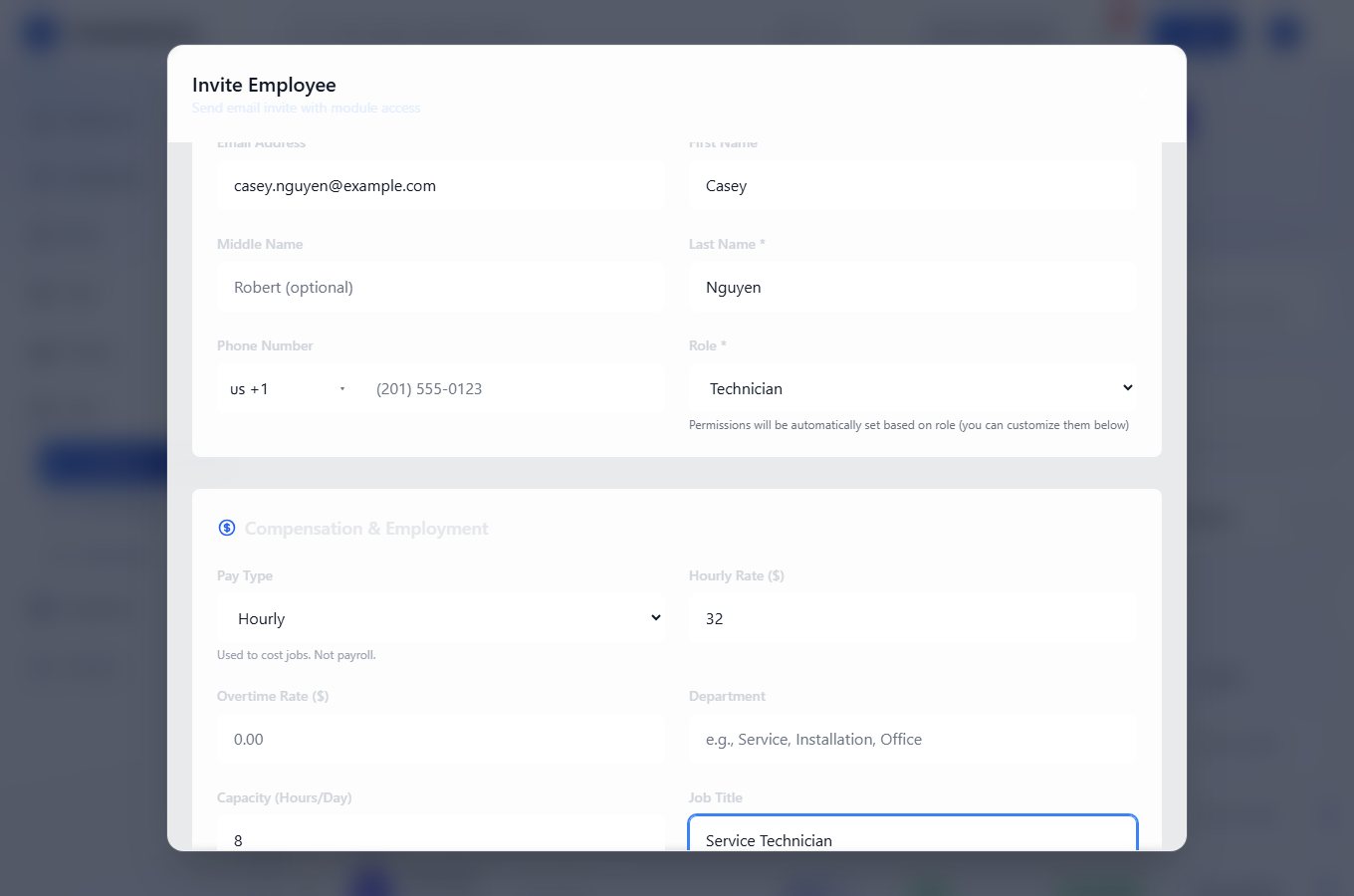
Enter their details and choose a role
Enter the email address and name, then pick a role. The role decides what the person can open and which seat they use: office roles such as Administrator, Manager and Dispatcher are Full Access seats, and field roles such as Technician, Apprentice and Helper are Crew seats. The hourly rate is used for job labor cost and is never shown to customers.
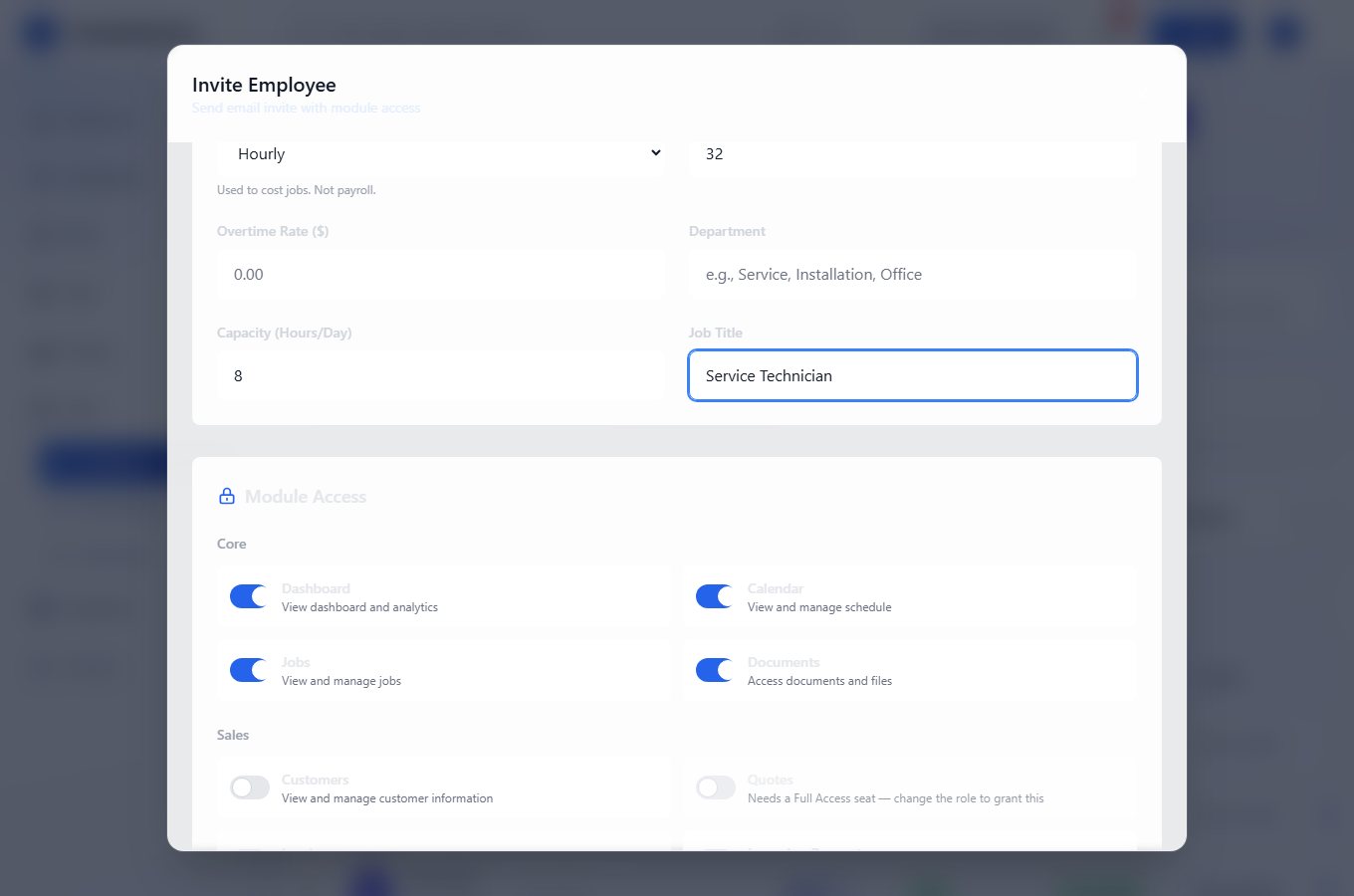
Check what they can see, then send the invite
Module Access lists the parts of the app this person can open; it is filled in from the role and you can adjust it. Send the invite when you are done. The person shows as a pending invite until they accept, and you are not billed for their seat until then.
Once they accept, you can assign them to jobs from the scheduling window and the calendar.
Screenshots show a sample company with made-up customers.