How to add a customer
You can add a customer on their own, or straight from a new quote with Add new customer. Either way it is the same form.
Open Customers and click Add Customer
In the left menu choose Sales, then Customers. Click Add Customer at the top right. To bring in a list from another system, use Import instead.

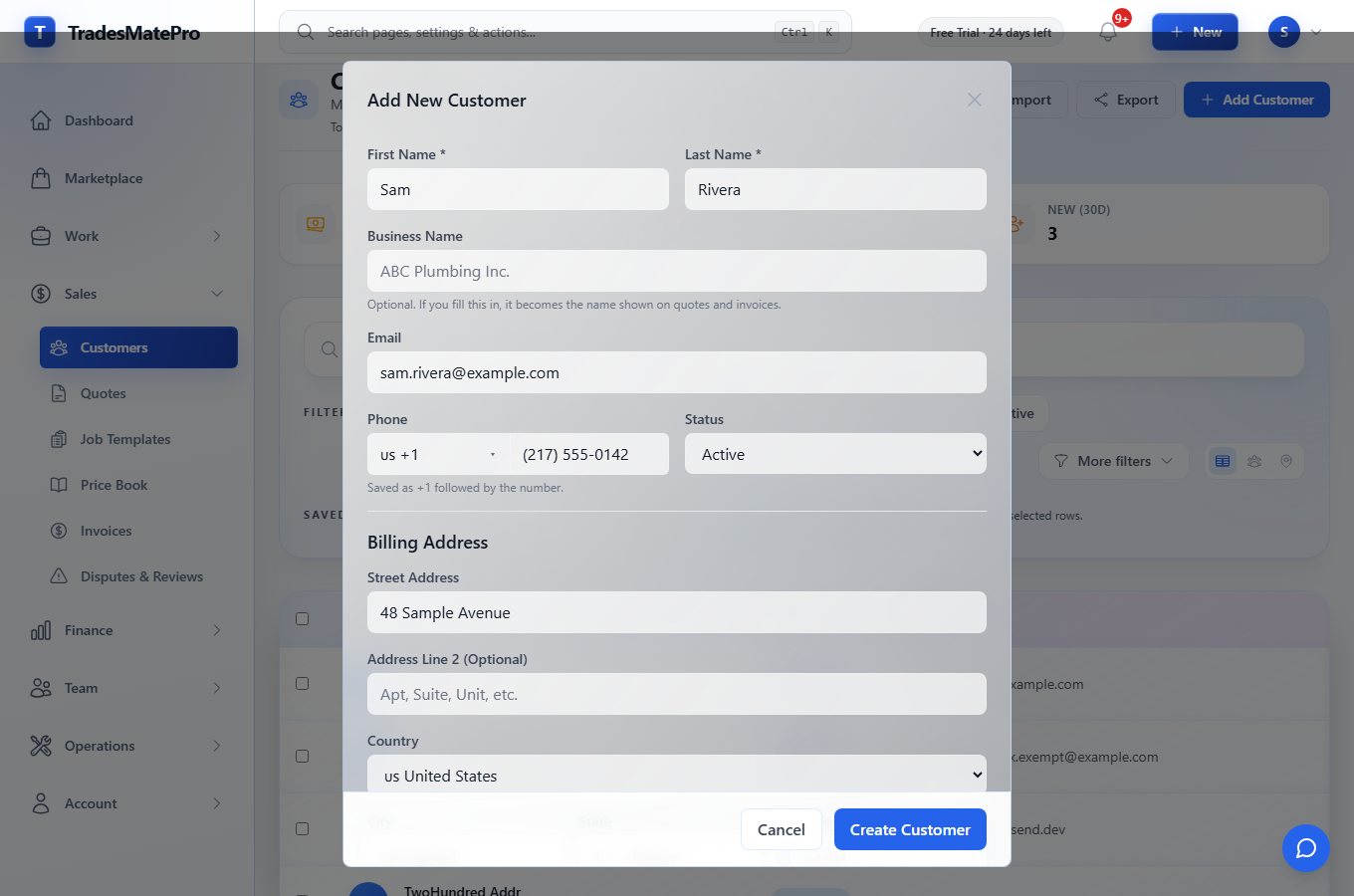
Enter the customer’s details
Choose Residential, Commercial or Industrial and enter the name. For a business customer, fill in Business Name. Add an email address so you can send quotes and invoices, and a phone number if you have one. Then enter the billing address.
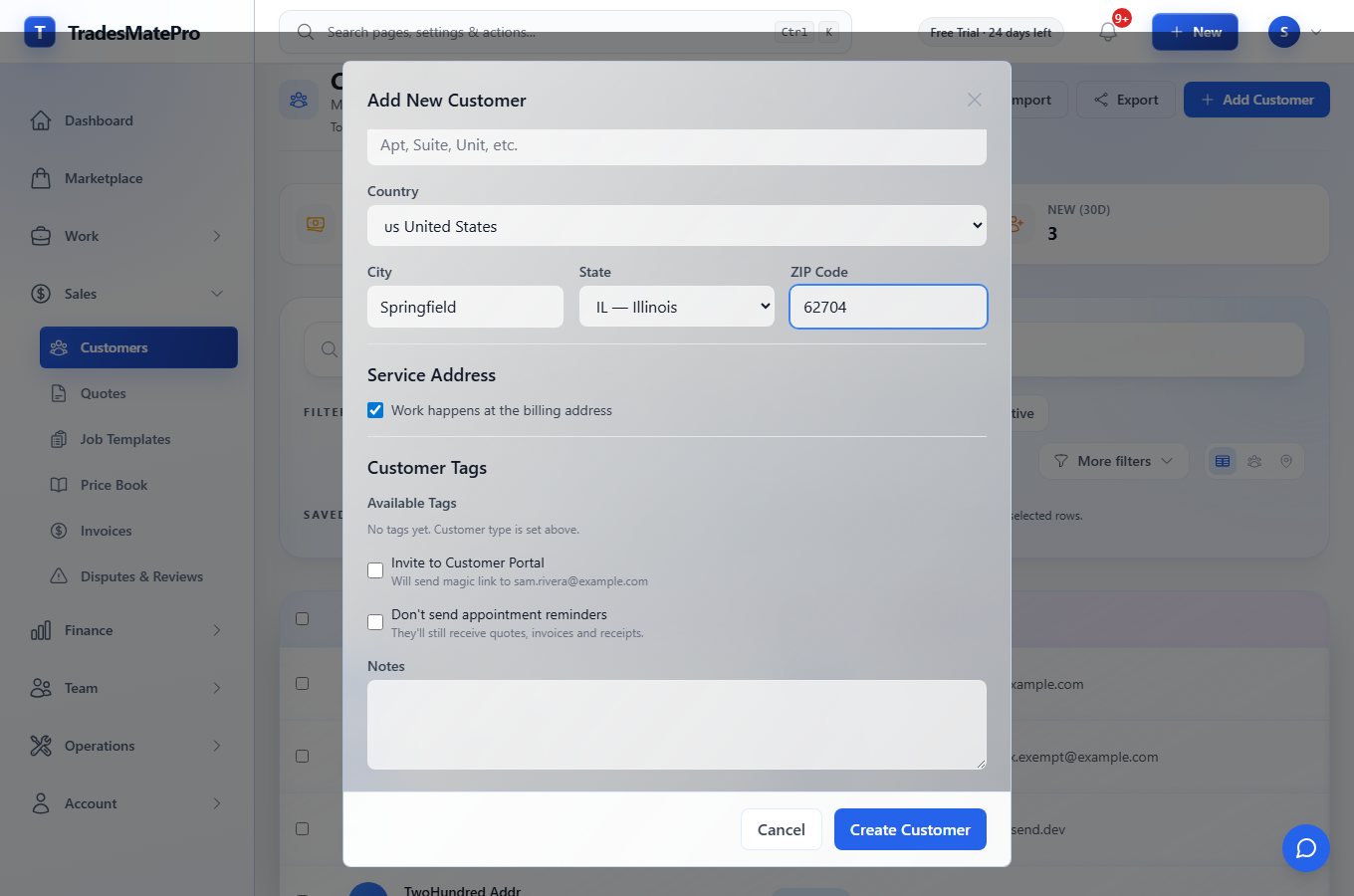
Set the service address and options, then click Create Customer
If the work happens somewhere other than the billing address, untick the box and add a service address. You can tag the customer, invite them to the customer portal, and add notes for your team. Click Create Customer to save. If someone with the same email address is already in the system, they are linked to your company, not duplicated.
Once saved, the customer has their own page with their quotes, jobs, invoices and messages in one place.
Screenshots show a sample company with made-up customers.