How to create and send a quote
A quote is where every job starts. This takes a couple of minutes, and the customer can approve it from their phone.
Open Quotes and click Create Quote
In the left menu choose Sales, then Quotes. Click Create Quote at the top right of the page.

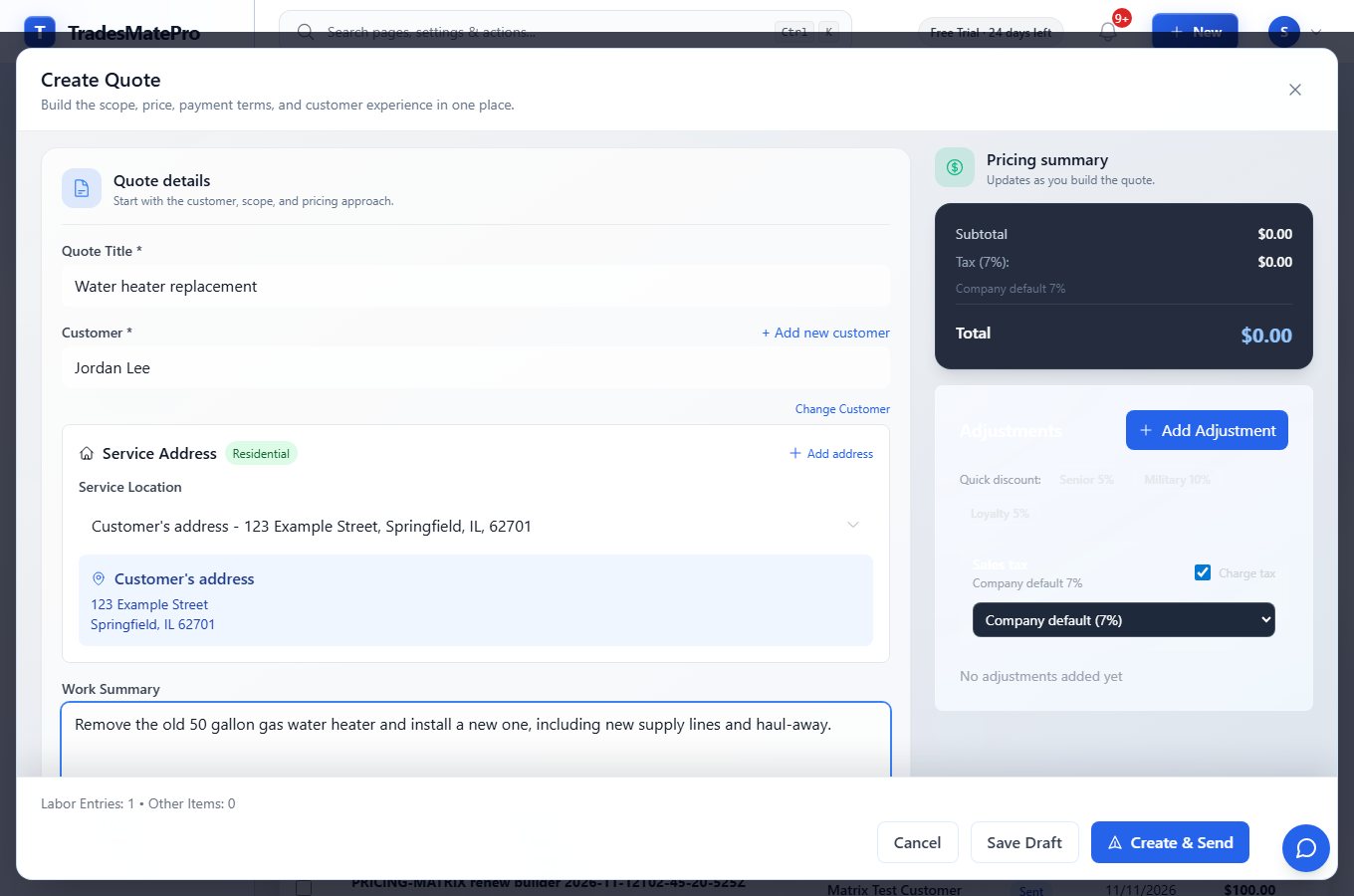
Give the quote a title and choose the customer
Type a short title the customer will recognise. Start typing the customer’s name and pick them from the list, or click Add new customer to create one without leaving the quote. The work summary is optional and appears on the quote.
Add labor and line items
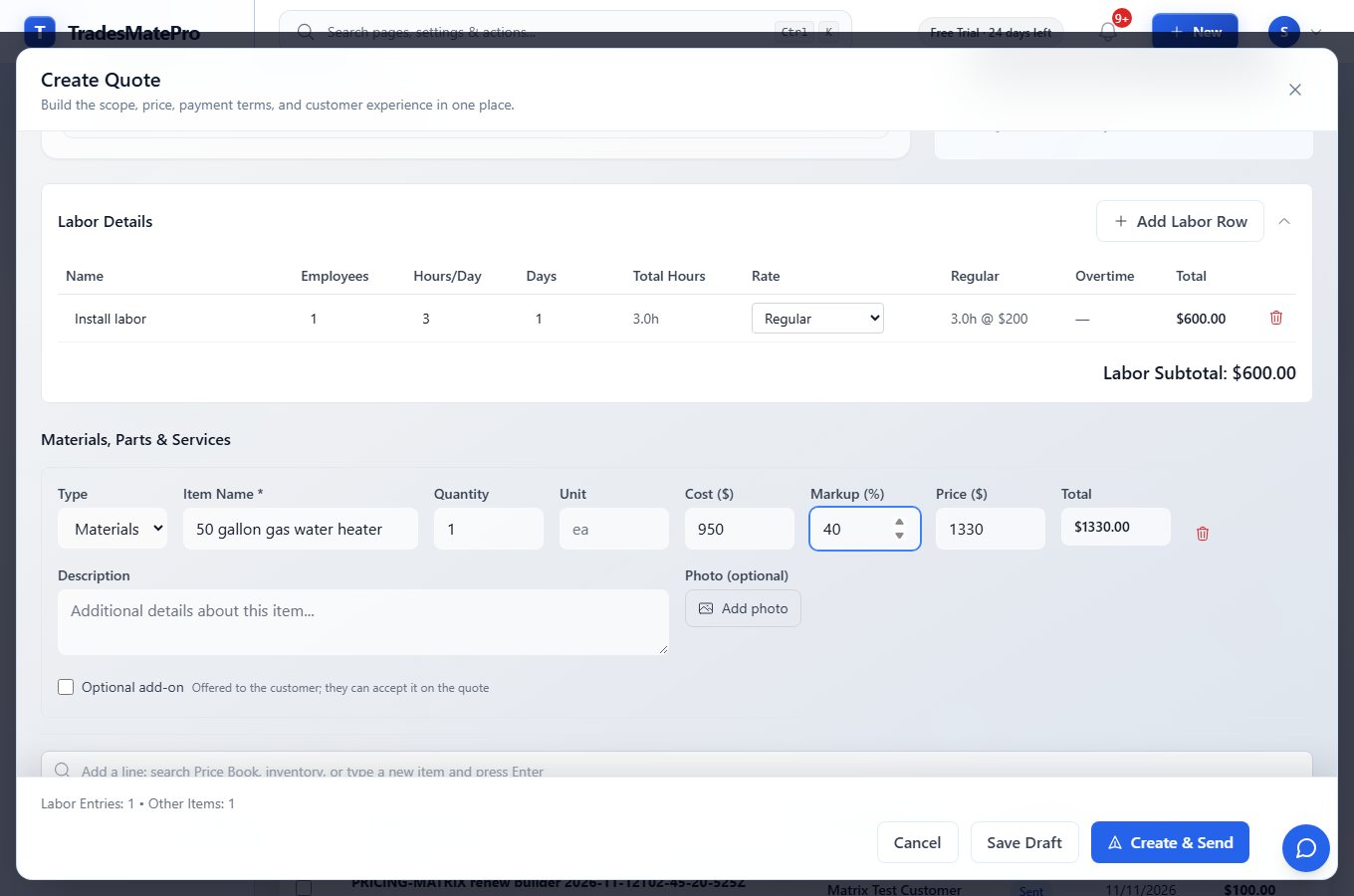
Under Labor Details, enter the number of people, hours per day and days; the labor total is worked out from your hourly rate. To add a part or service, type in the Add a line box: pick an item from your Price Book, or type a new name and press Enter. Enter your cost and markup and the price is calculated for you.
Set the terms and check the total
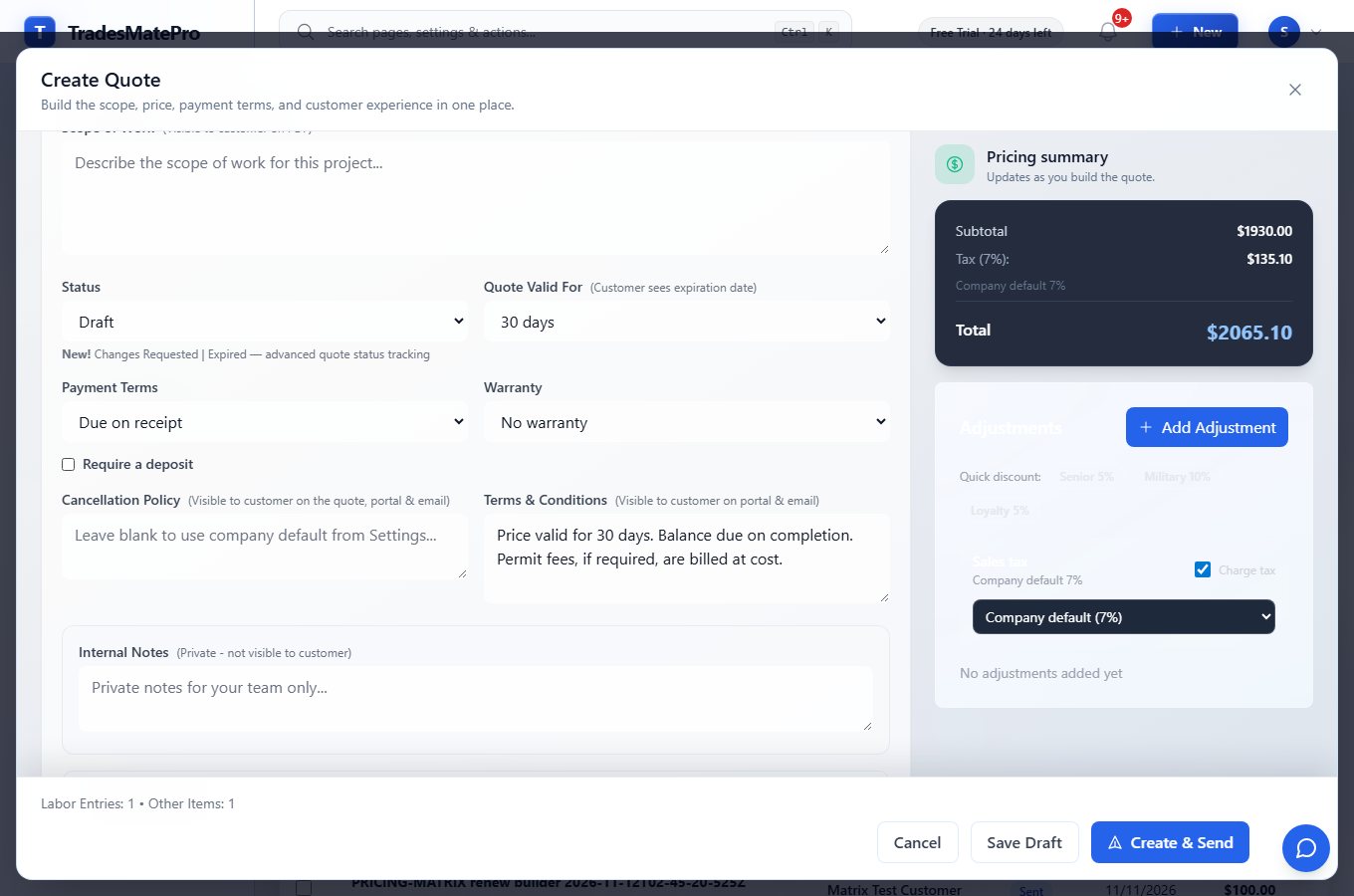
Choose how long the quote stays valid and your payment terms, and tick Require a deposit if you want one, as a percentage or a fixed amount. The Pricing summary on the right updates as you build the quote, including tax. Use Add Adjustment for a discount or an extra charge.
Click Create & Send and review the email
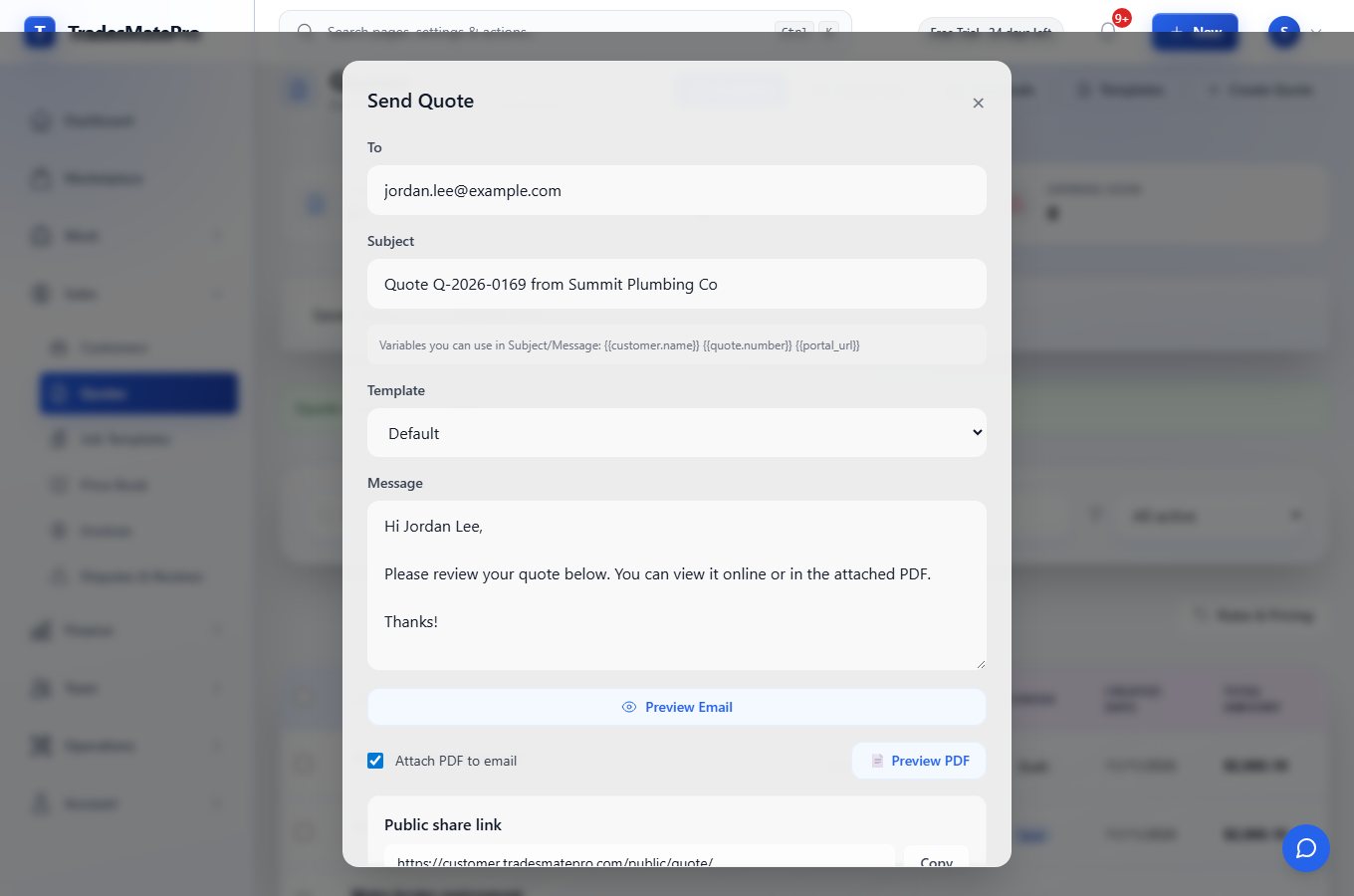
Click Create & Send. The quote is saved and a send window opens with the customer’s email address, a subject and a message you can edit. The quote is attached as a PDF, and the email includes a link the customer can open to approve it online.
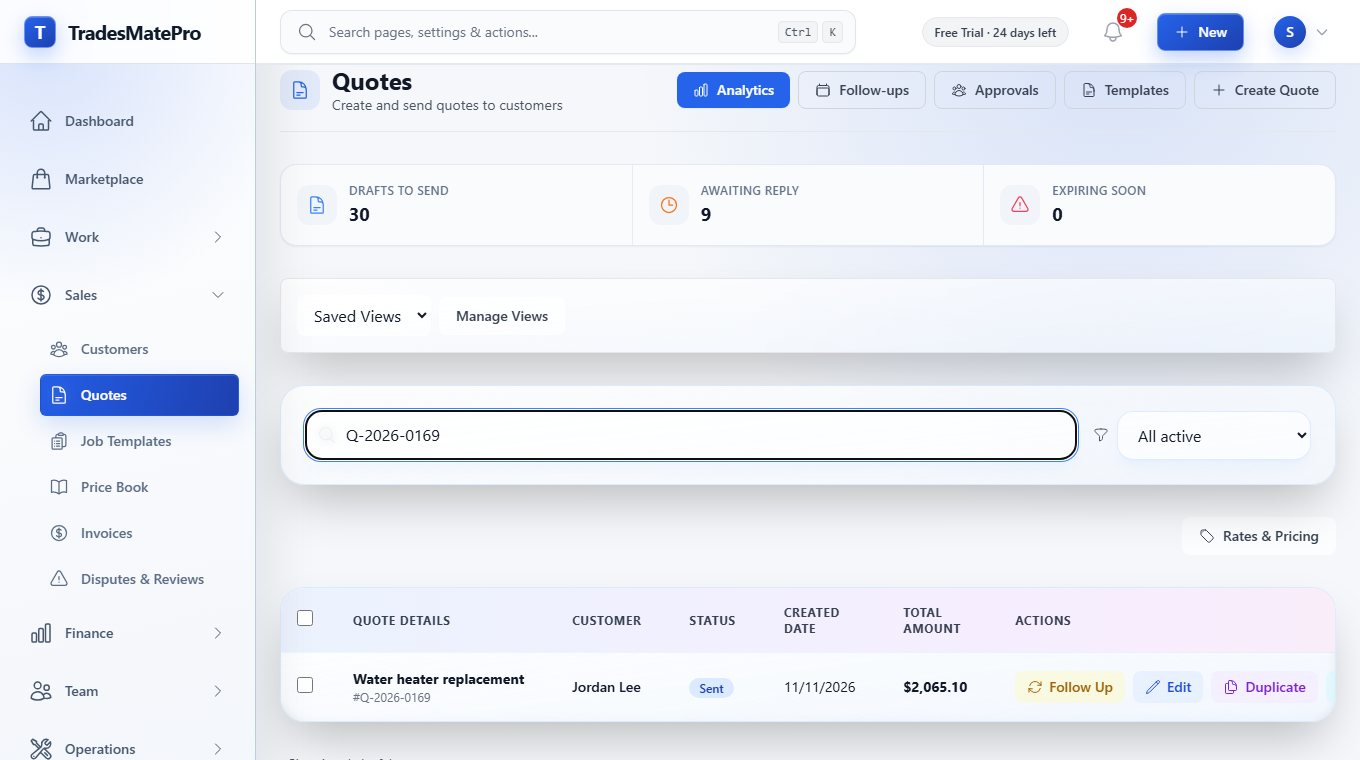
The quote shows as Sent
Back on the Quotes list the quote is marked Sent. When the customer opens it, the status changes to Viewed, and when they approve it, to Approved.
Next: see what your customer sees when they open the quote, and how to schedule the job once it is approved.
Screenshots show a sample company with made-up customers.