How to schedule an approved quote
Once the customer has approved, the quote is a job waiting for a date. Scheduling it takes three clicks.
Find the approved job on the Jobs page
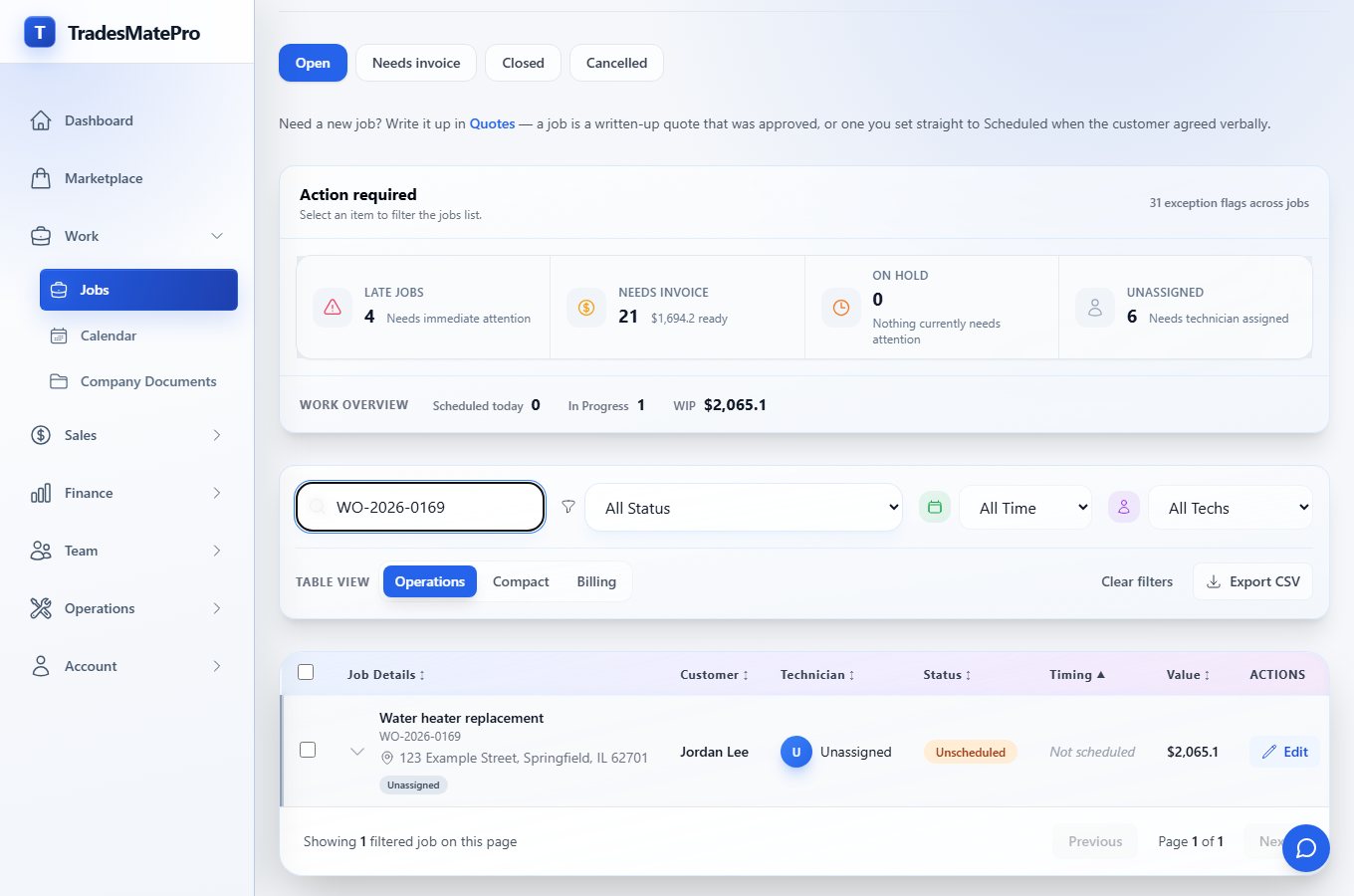
When a customer approves a quote it becomes a job. In the left menu choose Work, then Jobs. The job is on the Open tab, marked Unscheduled. Click Schedule on its row.
Check the job details and choose who and when
The Smart Scheduling window opens with the job’s title and the hours from the quote. Set how many people the job needs, pick an employee or leave it on Any Available Employee, and choose the date range to look in.
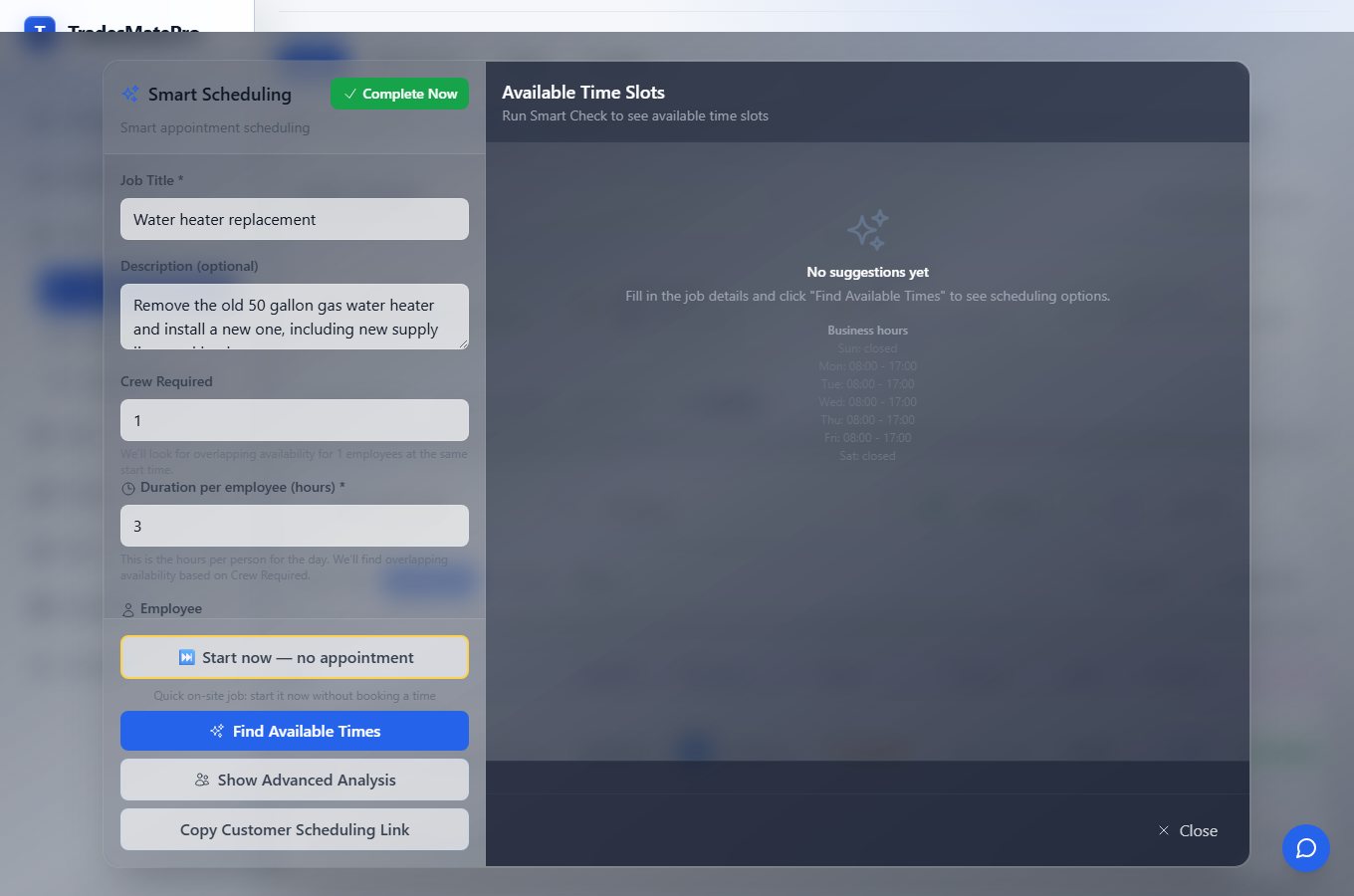
Click Find Available Times
The right side lists every open slot for each person, worked out from your business hours and the jobs already on the calendar, with travel buffers either side. If the job is happening right now, use Start now instead.
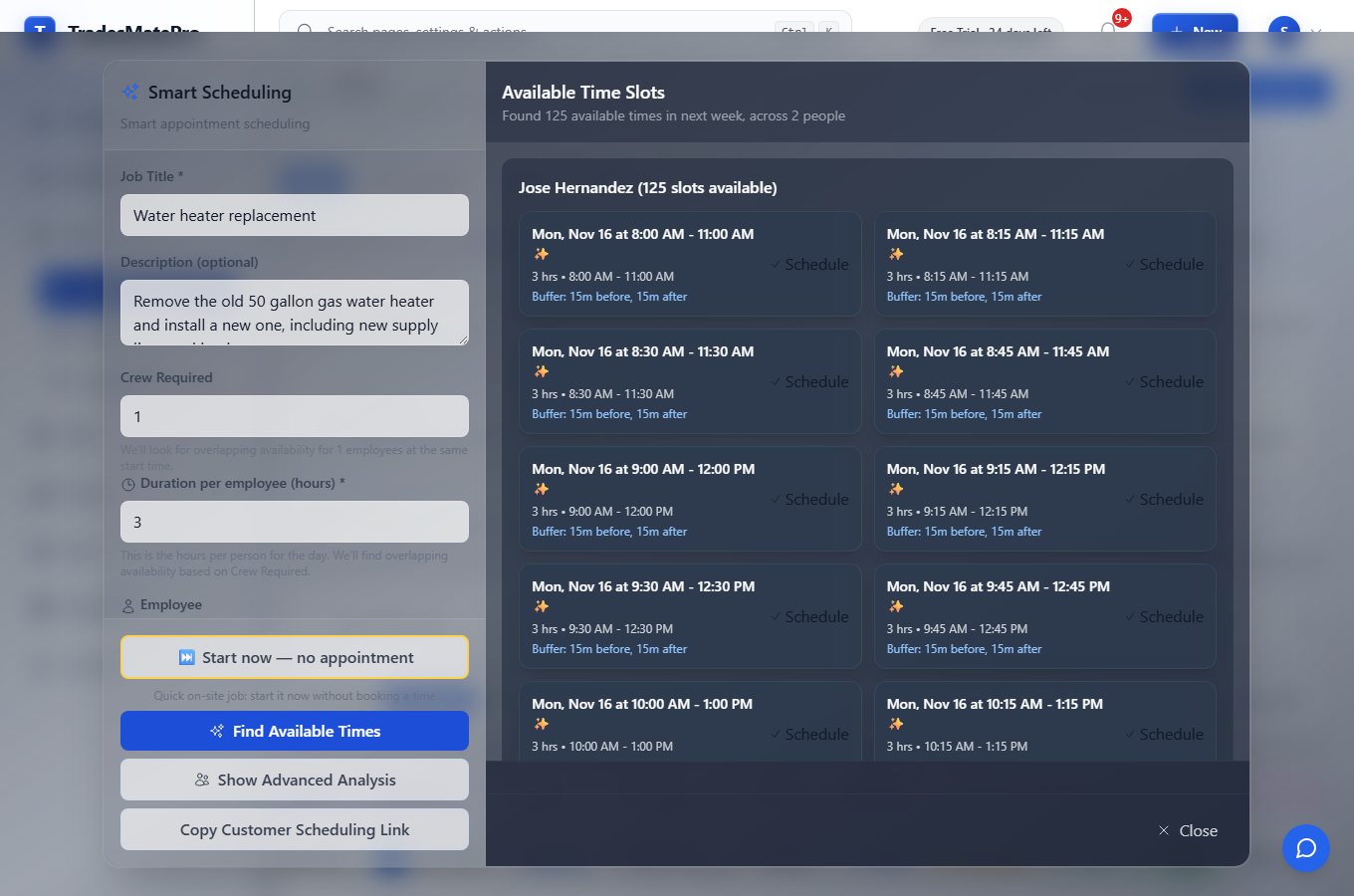
Click Schedule on the slot you want
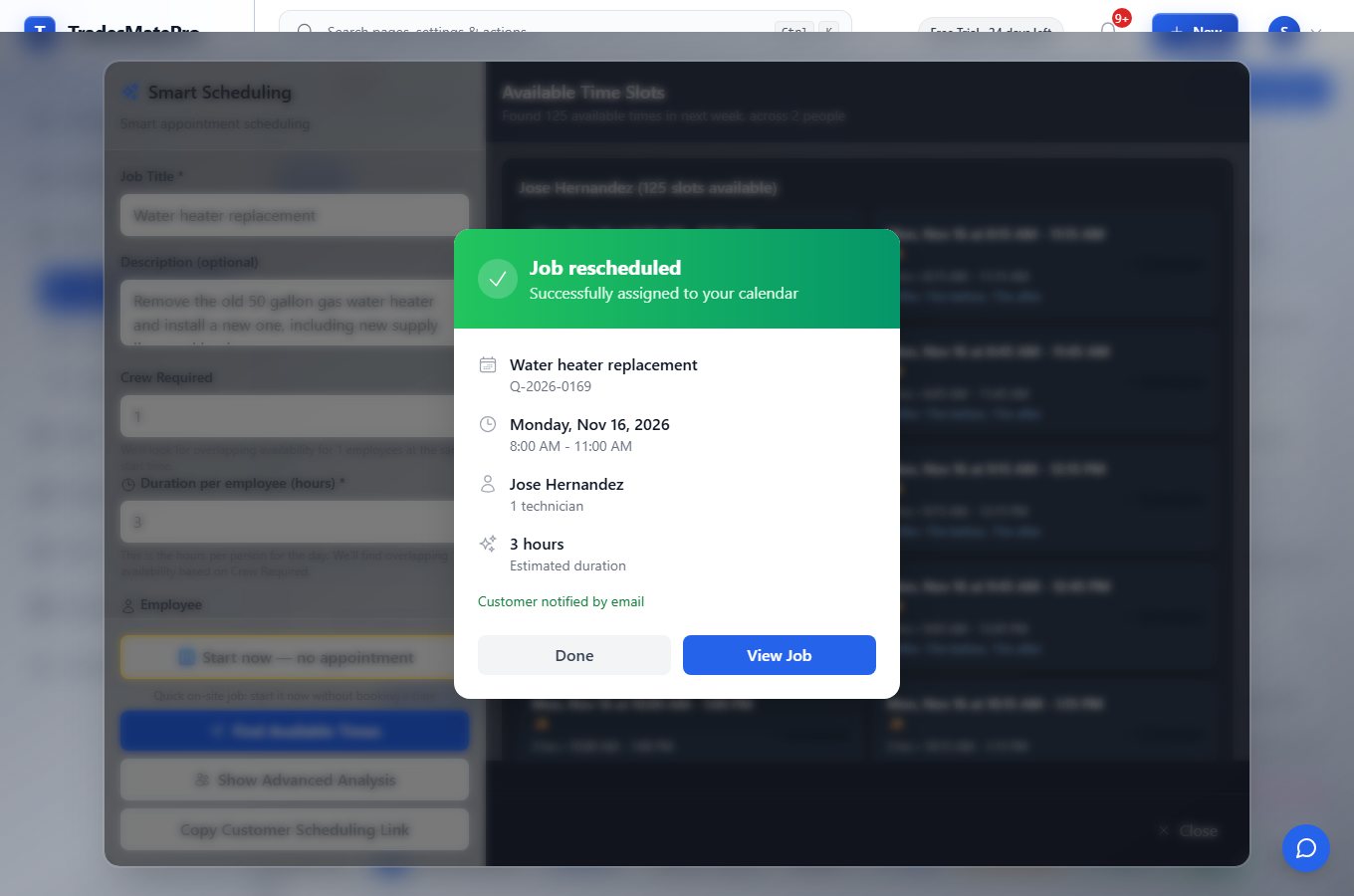
The job is booked for that time and person, and a confirmation shows the date, time, technician and duration. The customer is emailed the appointment.
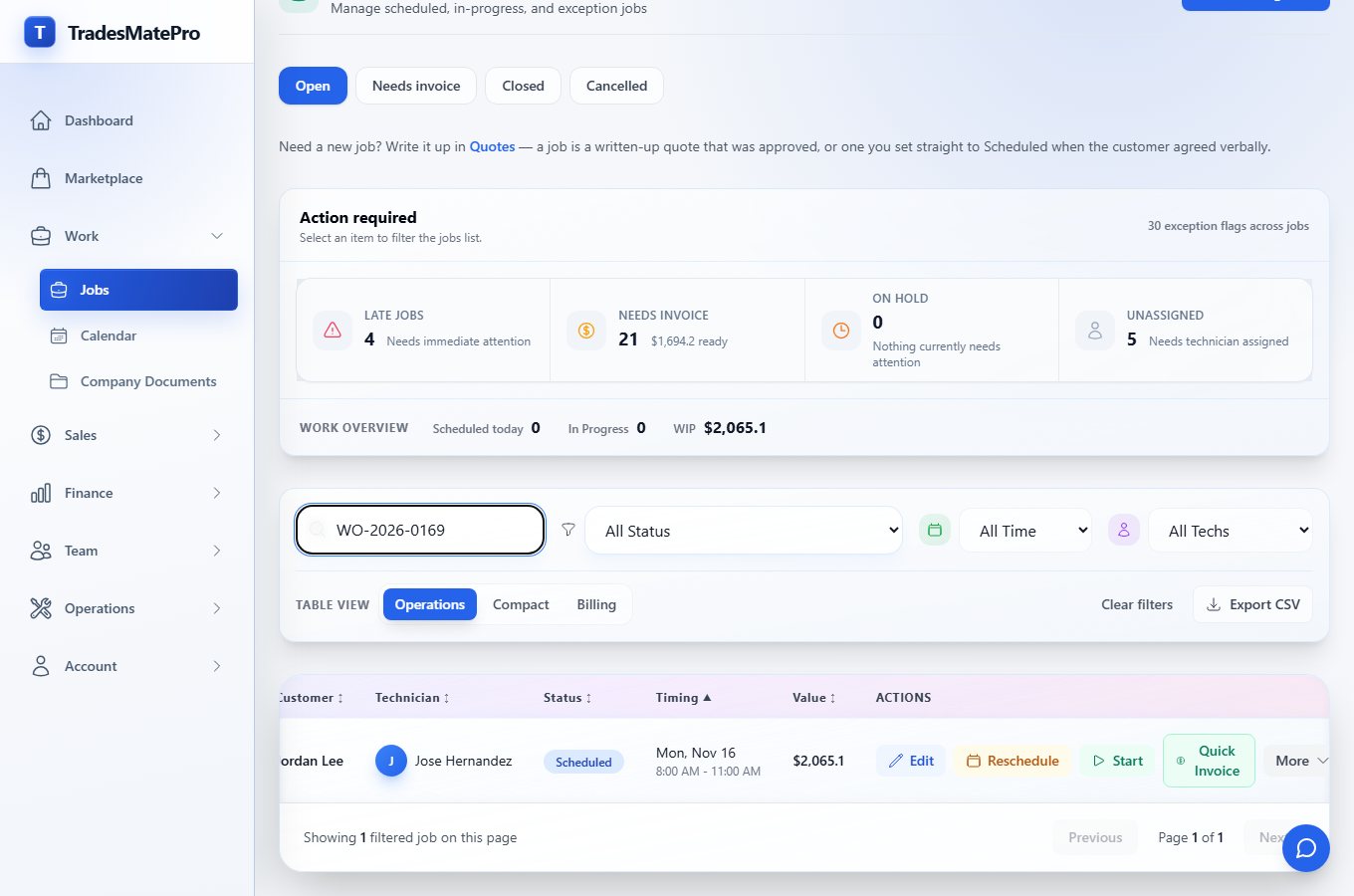
The job shows as Scheduled
Back on the Jobs page the job now shows its technician and appointment time. It also appears on the Calendar, where you can drag it to another time or person if plans change, and the technician sees it in their own job list.
Next: complete the job and send the invoice.
Screenshots show a sample company with made-up customers.