How to record a payment
When a customer pays online from the invoice link, the payment is recorded for you. Use this when they pay you directly, by cash, check or any other way.
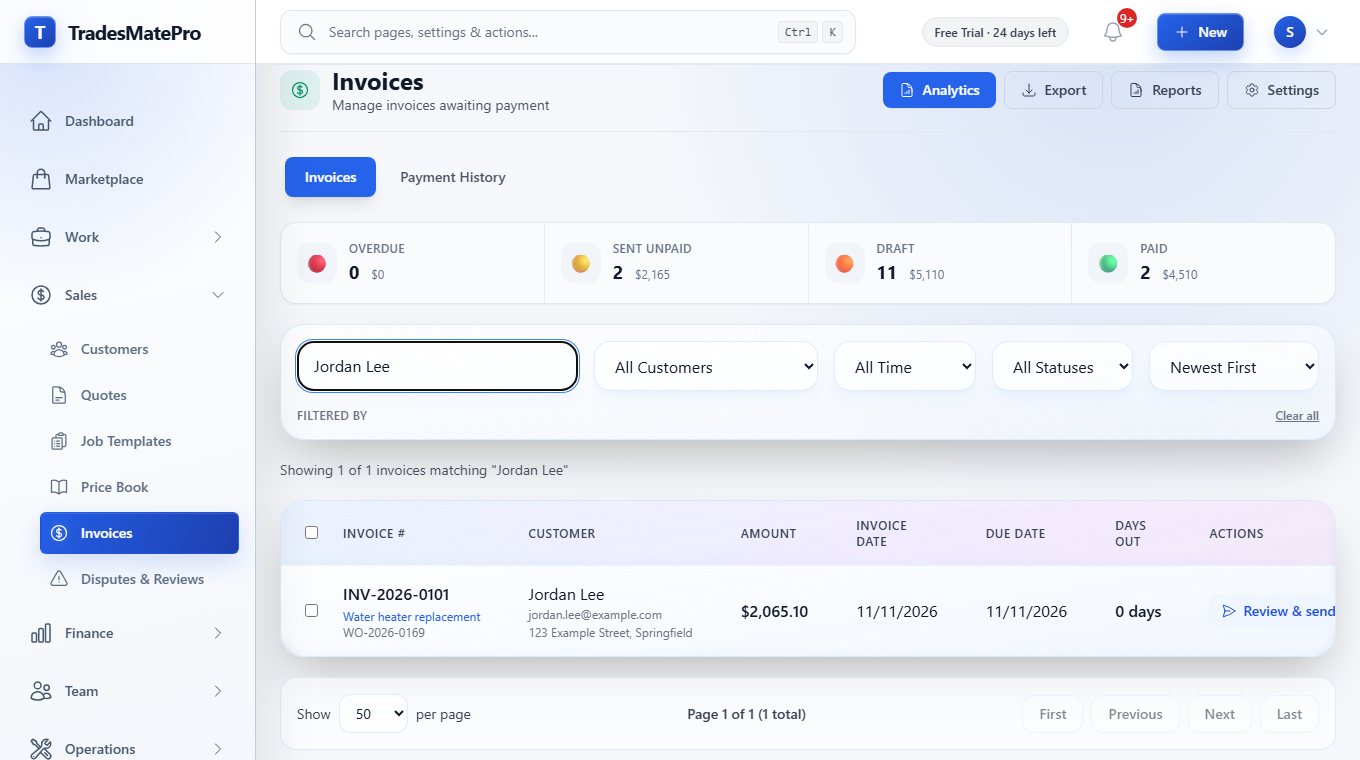
Find the invoice and click Pay
In the left menu choose Sales, then Invoices. Find the invoice by customer, invoice number or amount, and click Pay on its row.
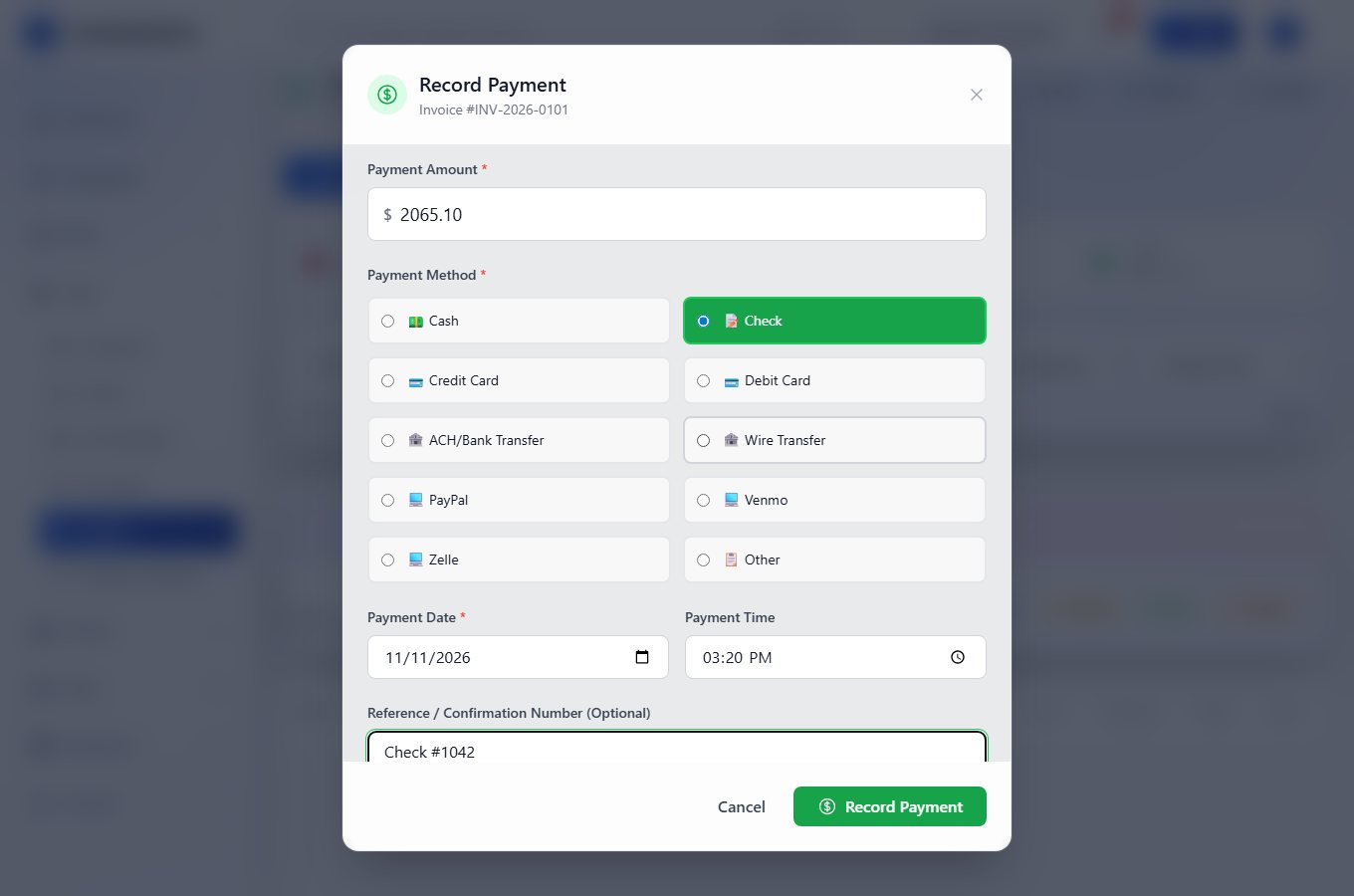
Enter the amount and how it was paid
The amount is filled in with the balance due; change it to record a part payment. Choose the method, such as cash, check, card or bank transfer, set the date, and add a reference such as a check number.
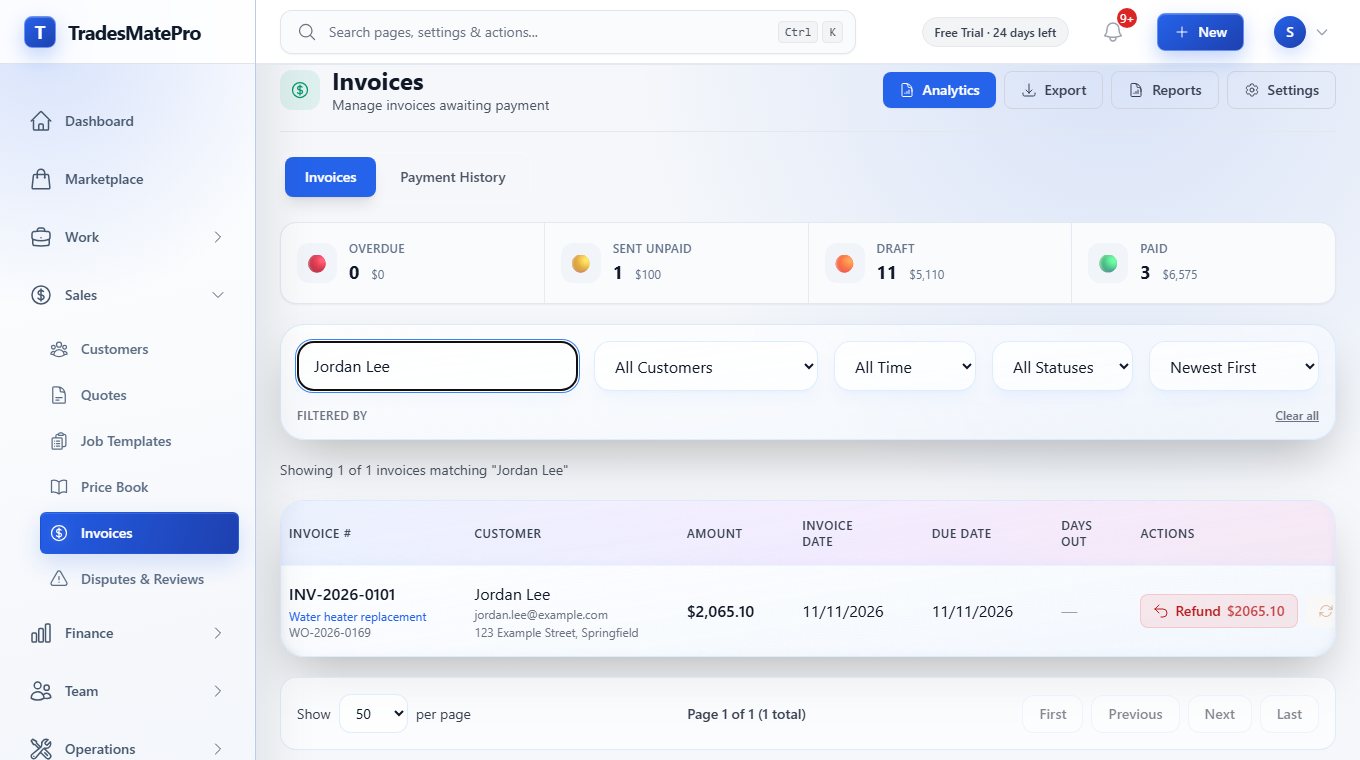
The invoice is paid
The payment is recorded against the invoice and it is counted under Paid at the top of the page. Its actions change to Refund and Reopen. A part payment leaves the remaining balance due. Every payment is also listed under Payment History.
That completes the cycle: quote, approval, schedule, job, invoice, payment.
Screenshots show a sample company with made-up customers.